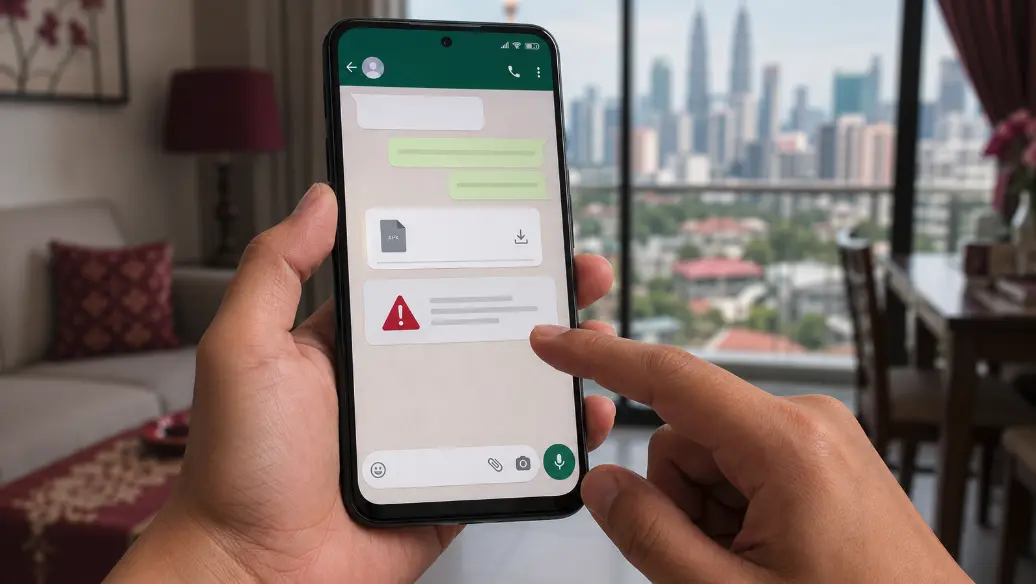
The message usually sounds ordinary: “Bro, this is the latest Android version for Mega888,” or “New 918Kiss update inside,” followed by an APK attachment or a download link. Perhaps it came from an agent's support number you spoke to yesterday. Perhaps a kaki (friend) forwarded it. The difficult part is that WhatsApp tells you who sent the message, not who actually built or modified the app inside the file.
That distinction really matters on a Malaysian smartphone that also holds your banking apps, Touch ’n Go eWallet, family chats, and saved identity documents. Before tapping that file, spend five minutes checking where it came from. Taking those five minutes is much less painful than trying to rebuild a compromised phone.
First, inspect the message—not the app
A familiar logo (like a game's official crest) and a Malaysian mobile number are incredibly easy to copy. Open the contact information and look at the full number, the date the conversation began, and whether earlier messages suddenly changed tone. Be especially cautious when a new number claims that the “old agent support line” has been replaced or "kena block," but offers no announcement on a public website or their official Telegram channel.
Next, look at the link. A shortened URL hides the destination until it opens. A misspelled domain can look convincing on a small screen. Do not rely on a screenshot of a website address; type the known domain into the browser yourself and locate its download page from there.
Four details that should agree
A reviewable Android download normally gives you more than a button. Compare these details between the public page, the chat and the file shown by Android:
- App name: spelling and spacing should remain consistent.
- Version: “latest version” is vague; a version number gives you something to compare.
- File size: small differences can happen, but a major unexplained change deserves a pause.
- Update date: an old page paired with a newly renamed file is not a clean chain of origin.
None of these checks can certify that an APK is safe. They expose contradictions. One contradiction is enough reason to stop and ask for a verifiable source.
Do not switch off every Android warning
Sideloading requires Android to permit installation from a source outside Google Play. That setting should be limited to the browser or file manager you deliberately used, then switched off again after the task. If a chat agent asks you to disable Play Protect, ignore a malware warning or grant Accessibility access “so installation can finish,” do not continue.
Malaysia’s Royal Police has specifically warned about suspicious APK links distributed through social media. Its advisory describes fake APKs being used to control phones and make unauthorised transfers. That does not mean every sideloaded game is malicious; it means the delivery method deserves real scrutiny. See the PDRM APK scam advisory.
Check the permission request in plain language
A game may reasonably need storage for downloaded assets or a microphone for voice chat. It is harder to explain why a simple game needs your SMS messages, complete contact list, notification access or permission to control other apps. Our guide to gaming apps that ask for SMS and contacts permission breaks down those requests one by one.
If you cannot explain a permission using a feature you intend to use, deny it. A legitimate app should either continue with reduced functionality or explain exactly what will not work.
A sensible decision at the end of the check
Install only when you can trace the file back to a stable public source, the version details agree, Android shows no serious warning and the permissions match the app’s features. For an editorial comparison of public mobile client websites, see our Mega888 APK Malaysia website comparison and client guide. “The agent said it is okay” is not part of that evidence.
If Android said the install finished but no game icon appeared, move to the APK installed but no app icon checklist. Do not use the same phone to change a banking password if you believe the device may be compromised.